
HELLO CUSTOM BOXES · PACKAGING GUIDE
Artwork Guidelines
Prepare the file the printer needs.
Prepare box artwork around the approved structure and the printer's file requirements. A design can look finished on screen while still containing missing fonts, soft images, or unintended ink settings. Use this guide to organize the handoff before exporting your production PDF.
THE SHORT ANSWER
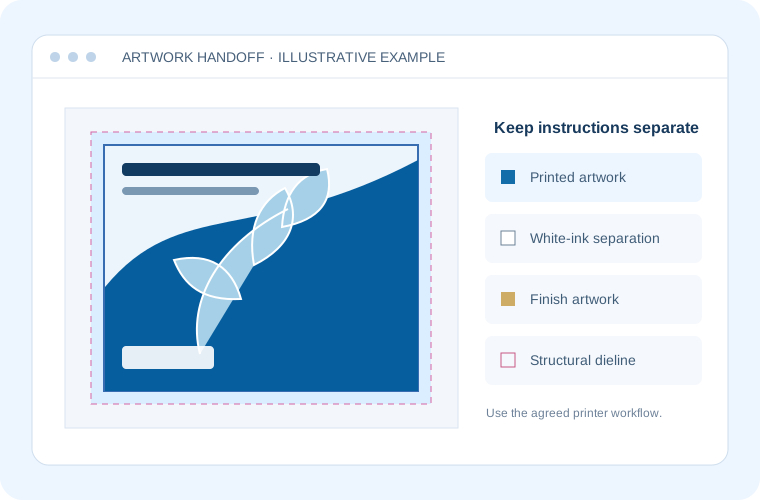
Use the current approved dieline, check images at final size, and agree on color handling, fonts, PDF settings, and proofing with the printer. Keep structural instructions and finishing artwork separate from printed graphics. Get the job's bleed and safe-area requirements before positioning important content.
Agree on color handling first
Ask for the intended print condition and the required ICC profile before converting artwork.
Confirm the conversion workflow
Find out whether the printer expects converted CMYK artwork or accepts tagged color for conversion later. Record the destination profile and how named spot colors should be handled. A generic CMYK choice may not describe this job.
Check the output intent
A PDF output intent describes the intended reproduction condition. Adding one does not itself convert the PDF's colors. Check that the output intent and conversion settings match the agreed instructions; do not select a profile just because its name includes USA.
Reference: Adobe: Output intents in PDFs · Adobe: Adobe PDF options
Check assets at their final size
Inspect the actual placed artwork, including small text and linked images.
Keep useful vector originals
Use original vector logos and line artwork where available. Placing a screenshot inside a vector document does not make the screenshot vector. Check fine details at the size they will appear on the box, rather than judging only a zoomed-in view.
Check effective image resolution
Ask for the image-resolution requirement for the job. Check effective pixels per inch after scaling, not just the source file's resolution label. Enlarging a photo spreads its pixels over a larger area. Replace weak assets before export and inspect the exported PDF for compression damage.
Embed or outline by agreement
Embed fonts, including permitted subsets, when the agreed PDF workflow calls for live text. Outline text when the printer specifically requires it. Keep an editable master before outlining, then compare wording and appearance. Confirm that font licensing permits the intended use.
Reference: Adobe: Adobe PDF options · Adobe: Preview output (Acrobat Pro) · Esko: A Guide To The Full Packaging Prepress Process
Export with the printer-approved preset
Get the required PDF standard or supplied settings before the final export.
Use the requested settings
PDF/X-4 can preserve live transparency, but it is not a universal instruction for every packaging workflow. Use the version and preset the printer approves. Review image downsampling, color conversion, font handling, page boxes, and requested marks together.
Inspect the delivery PDF
Reopen the exported file and run preflight against the agreed requirements. Check fonts, images, dimensions, and separations in that file. Name the revision clearly, such as carton-front-v03.pdf, and identify which earlier version it replaces.
Reference: Adobe: Adobe PDF options · Adobe: Preview output (Acrobat Pro) · Esko: A Guide To The Full Packaging Prepress Process
Inspect overprint and white ink separately
A normal composite preview can hide unwanted interactions between ink separations.
Review intended overlaps
Use Output Preview with overprint simulation and inspect the separations. Confirm which objects should overprint and which should knock out. Do not apply overprint to every object as a general fix. Ask the printer to resolve uncertain settings before release.
Define white ink explicitly
Ordinary white artwork is not automatically a white-ink separation. If white ink is specified, confirm its channel name, coverage, alignment, and overprint or knockout treatment. Review that separation independently. Do not treat the word white in a swatch name as proof that it is configured correctly.
Reference: Adobe: Preview output (Acrobat Pro) · Esko: A Guide To The Full Packaging Prepress Process
Separate the dieline and finishing instructions
Keep production instructions identifiable without mixing them into the printed design.
Preserve structural information
Keep the approved dieline on a separate, clearly named layer in the working file. Confirm how it should be represented or excluded in the delivery PDF. A layer name alone does not tell an output system to omit those objects.
Identify each finish
Where specified, supply foil, embossing, or varnish artwork in separate named layers or channels using the printer's conventions. Keep every element aligned to the same structure. Ask whether the workflow needs separate files or PDF Processing Steps information.
Reference: Ghent Workgroup: Packaging · Esko: A Guide To The Full Packaging Prepress Process
Use the job's bleed and safe areas
There is no single bleed or safety margin that fits every box.
Extend backgrounds deliberately
Carry edge-reaching artwork to the bleed boundary specified for the approved structure. Keep important text and logos within the required safe areas, including clearance from folds. Follow the template's glue and no-print restrictions. If a boundary is unclear, request clarification before moving the design.
Reference: Esko: A Guide To The Full Packaging Prepress Process
Choose a proof for the question
Confirm what each proof is intended to verify.
Layout and color
A layout PDF helps check wording, placement, and revisions. A color-managed soft proof simulates a specified output condition; its reliability depends on profiles, the monitor, and viewing conditions. For color-critical decisions, ask about a suitable physical color proof and its limitations.
Structure and approval
A structural sample answers fit and assembly questions that a flat PDF cannot settle. Agree on the proof types needed for the project and record the approved revision. If artwork changes afterward, identify what changed and arrange the relevant checks again.
Reference: Adobe: Color-managing documents · Esko: A Guide To The Full Packaging Prepress Process
Before You Send the Specification
Use these checks to prepare your handoff.
Artwork Guidelines FAQs
Does every image need the same PPI?
No. Get the requirement for the image type and production workflow. Judge effective resolution at final size; this guide sets no universal PPI target.
Should I outline every font?
Follow the agreed workflow. Embedded fonts can suit a print PDF; outlines may be requested. Keep an editable original either way.
Does a screen approval confirm physical fit?
A flat artwork approval does not test the product inside an assembled box. Use the Dieline Guidelines for structural checks.
PLAN YOUR PACKAGING
Have artwork questions before you send the file?
Share your product, box size and the details you need help with.